Edit Olympus ORF files on your Mac.
Olympus to OM System.
RevelRaw is a native macOS RAW editor. Drop an .ORF from your OM System or Olympus body, and the app reads the scene, ranks 50+ curated presets, and lets you fine-tune, compare and export, all on your Mac.

Edit and compare unlimited photos free. Includes one full-quality export. Lifetime purchase available.
macOS 26 or later · Apple M1 or later
About the ORF format
ORF is the Olympus RAW Format, and it survived the 2021 rename to OM System: an OM-1 writes the same .ORF an E-M5 did. Each file holds the sensor readout, your Picture Mode or Art Filter as a note, and a JPEG preview. RevelRaw opens ORF from PEN, OM-D, Tough and OM System bodies, High Res Shot composites included.
- Cameras
- Olympus E-System DSLRs, PEN, OM-D and RAW-capable Tough compacts; OM System OM-1, OM-1 Mark II, OM-3, OM-5, OM-5 Mark II
- Brand change
- Olympus became OM System in 2021; the file format didn't change
- Opens in macOS Preview?
- Single shots from listed bodies, yes. Apple excludes High Res Shot files on seven bodies, and an OM-5 Mark II composite showed nothing in our test
- File size, measured
- Single shot, 20 MP: 19.2 MB (OM-5 Mark II), 21.8 MB (OM-1). High Res Shot: 41–87 MB
The ORF that won't open is usually a High Res Shot. Apple's list excludes those 50 and 80 MP composites on seven bodies: in our test, an OM-5 Mark II High Res ORF showed nothing in Preview or Quick Look, while a normal frame opened. RevelRaw passes a file macOS declines to its own decoder, and the composite opens — without white-balance sliders or lens correction, for now.
Next to each composite, recent bodies save an .ORI file, a plain single frame from the same sequence. RevelRaw, like most Mac software, doesn't list .ORI as a RAW type; renaming the extension to .orf is the usual workaround. Everyday ORFs are light by comparison, around 20 MB from a 20 MP sensor, so a full card imports quickly.
Related guides
Change just part of your photo.
Brighten a face, soften a background or bring out the sky. Selective edits let you adjust light, color and detail exactly where you want them.
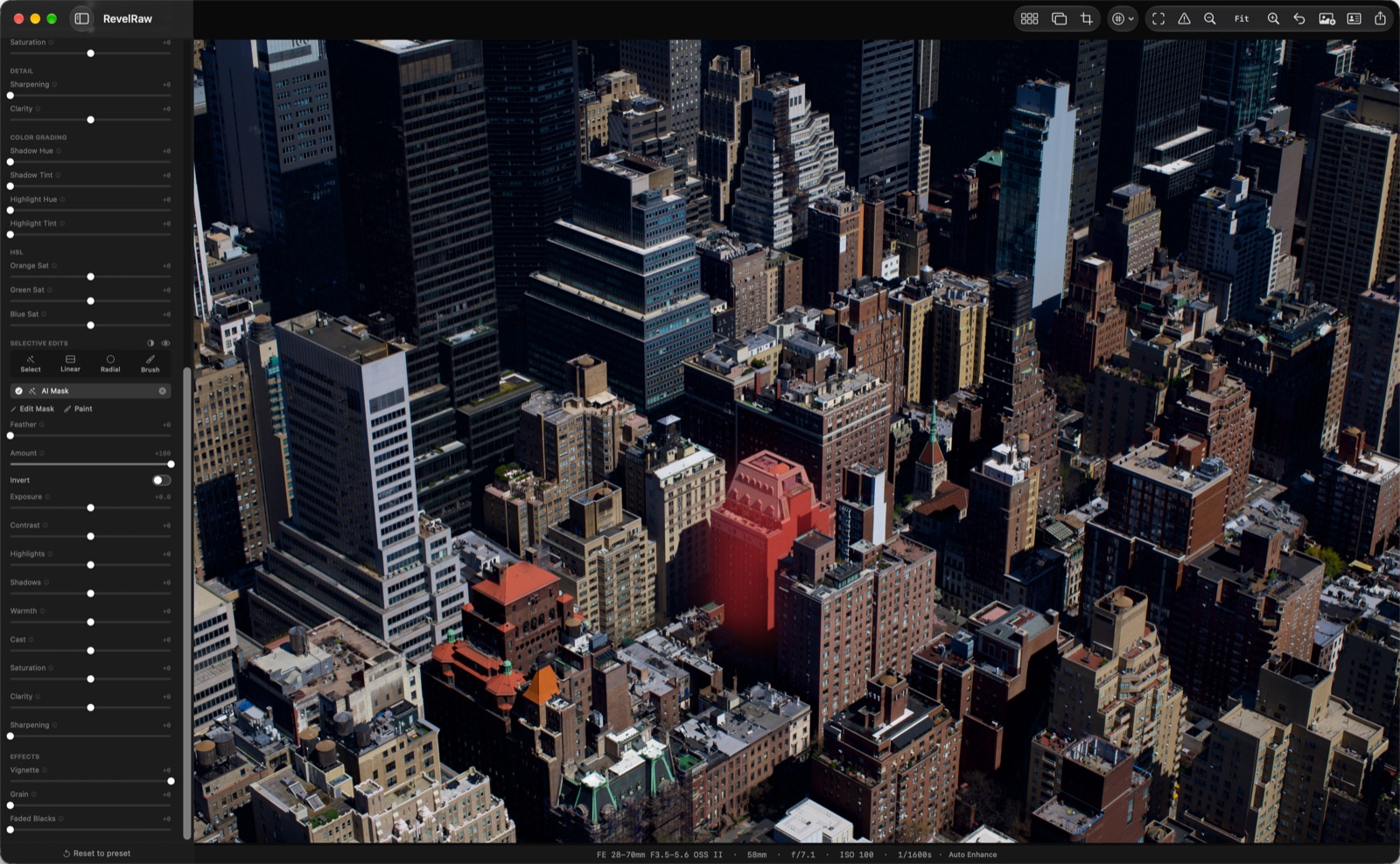
- Click to select
- Click a face, the sky or the background to select it. Requires macOS 27; Apple’s selection model downloads on first use, then runs on your Mac.
- Gradients and brush
- Darken a sky with a linear gradient, lift a subject with a radial gradient, or paint a mask with the brush. Works on macOS 26 and later.
- Refine each area
- Use up to three layers per photo, each with its own light and color controls. Soften edges, change the amount or invert the selection.
- Carry edits across a series
- Sync, Copy and Paste gradient and brush layers across compatible photos. AI selections stay with the original photo.
Bring out the detail. Get the color right.
Start with Auto white balance, fine-tune in Kelvin, and return to As Shot whenever you like. Pull back highlights and lift shadows without halos, add depth with Structure and cut through haze with Dehaze. Shift any of eight color bands with HSL, shape contrast with RGB tone curves, and compare with the original as you edit.

Export for your feed, portfolio or print.
Choose an export preset for Instagram, your portfolio, stock sites or print. Set the format, size and color space together, and include your name and copyright in the file.
- Instagram JPEG · 1080 × 1350 · sRGB · 90%
- 500px JPEG · 2048 × 2560 · sRGB · 95%
- Adobe Stock JPEG · Full · sRGB · 100%
- Print TIFF 16-bit · Full · Adobe RGB
- Web HEIF · 2400 long · P3 · 85%
“RevelRaw does everything locally, with no account and no internet. The AI scene detection is genuinely useful, and the AI denoise saved several high-ISO photos from a wedding last week.”
“It was better than I expected. For editing something quickly, it’s a very good app.”
“The AI helped me remove the noise from my photos.”
Clean up the grain in the shots worth keeping.
Reduce luminance and color noise with AI denoise, then set the strength to keep the texture you want. Process the full-resolution photo on your Mac. Drag the comparison to inspect the detail.
Bring the RAW files you already shoot.
Open 24 RAW formats, from Canon CR3, Nikon NEF, Sony ARW and Fujifilm RAF to DNG and iPhone ProRAW. Check supported RAW formats, then try one of your own files. Just need to look at a file first? See how to open RAW files on a Mac with nothing installed.
Edit free. Your first export is on us.
Edit as many photos as you like. To export more than one, choose any plan below.
- Unlimited full-resolution exports, no watermark
- Batch export a whole shoot, or just your selection
Prices shown in USD. Download free and choose a paid plan inside the app. Apple handles payment. Monthly and yearly subscriptions auto-renew until you cancel in System Settings; lifetime is a one-time purchase.
Before you download
Can RevelRaw open ORF files?
Yes. Drag a .ORF into RevelRaw or pick it from File > Open — AI scene detection, all 50+ presets and every fine-tune control work on it, and exports go out as JPEG, PNG, TIFF or HEIF. Curious what's inside an ORF file? Read our ORF guide, how to open ORF files on a Mac — or convert ORF to JPEG when you need a shareable file.
Which cameras does RevelRaw support?
Olympus and OM System bodies from the E-System DSLRs through PEN, OM-D and the Tough compacts to the OM-1, OM-3 and OM-5 families. RevelRaw also opens RAW from Sony, Canon, Nikon, Fujifilm, Panasonic and the other major brands. See every format RevelRaw opens.
How much does RevelRaw cost?
RevelRaw is free to download, editing is free, and your first export is free so you can try the whole workflow. After that, RevelRaw Pro gives you unlimited exports and batch export for $3.99/month, $24.99/year (about $2.08 a month), or $94.99 once for lifetime access. You buy inside the app through your Apple Account, and monthly or yearly plans can be canceled anytime.
What is RevelRaw?
RevelRaw is a Mac app for editing RAW photos. Open an Olympus .ORF file and RevelRaw recognizes what's in the shot, suggests the best-matched looks from its 50+ presets, and lets you fine-tune and export, all on your Mac.
Does RevelRaw open High Res Shot ORF files?
Yes. RevelRaw's test set includes High Res Shot ORFs from the E-M1 Mark II, OM-1, OM-1 Mark II and OM-5 Mark II, handheld and tripod, and they open whether or not macOS can read them. When RevelRaw's own decoder does the work, white balance and lens correction aren't available yet. Expect big files: 41 to 87 MB in that set.
Why do my Art Filters disappear when I open an ORF?
The camera applies an Art Filter or Picture Mode to its JPEG and to the preview inside the ORF, and only notes it alongside the sensor data. RevelRaw develops that untouched data, so a Grainy Film frame opens as a clean color photo. Only OM Workspace, the free app from OM System, re-creates the camera's filter.
What can I try for free?
Open, edit and compare unlimited photos for free, including syncing edits across a shoot. One full-quality single-photo export is included. Pro unlocks unlimited exports and batch export.
Will it work on my Mac?
You need macOS 26 or later and a Mac with an Apple M1 chip or later. RevelRaw is available in English, Spanish, Japanese, German, French, Italian and Portuguese. Check the current requirements on the Mac App Store before downloading.
Do I need editing experience?
You can start with a suggested preset and export, or refine the result with exposure, color, detail and crop controls. Preview your changes, compare with the original and use undo to explore different edits.
Does RevelRaw have film looks and HSL?
Yes. RevelRaw 4.8 adds 14 film looks inspired by classic slide, negative, cine and black-and-white film, and an HSL panel that adjusts hue, saturation and luminance in eight color bands. Structure and Dehaze arrived in 4.7. All of them are free to use; Pro adds unlimited and batch export.
Do my photos get uploaded?
Opening, editing, AI processing and exporting happen on your Mac. You do not need a RevelRaw account. You need internet access to download the app or buy Pro through the App Store.
Can I export for social media and print?
Yes. Export as JPEG, PNG, TIFF or HEIF, with presets for social media, stock sites, print and web. Set the dimensions, quality and color space for your destination, and add copyright and other metadata to the file.
Can I edit a whole shoot at once?
Yes. Open a folder or multiple RAW files, refine one photo, then Sync, Copy or Paste selected settings across the others. Batch editing is free and can be undone in one step. Pro adds batch export of your selection or the whole shoot.
Can I edit just part of a photo?
Yes. Masks are free, with no Pro required. Use linear gradients, radial gradients and a brush on macOS 26 or later. Click-to-select requires macOS 27 and downloads Apple’s on-device selection model on first use. Each photo supports up to three layers with separate light and color controls. Gradient and brush layers can be synced across compatible photos; AI selections are not copied.
Can I bring my Lightroom presets and edits?
Import compatible Lightroom .xmp presets and .cube color LUTs. Supported Lightroom adjustments can also be read from a DNG or an accessible XMP sidecar beside your RAW file, including its crop and straighten angle. Adobe profiles and masks are not imported, and rendering can differ. This does not import your Lightroom catalog.
From .ORF to finished photograph, in minutes.
Take one of your own photos from a suggested look to a finished export. Try the workflow before choosing a paid plan.