Instagram photo export settings (2026)
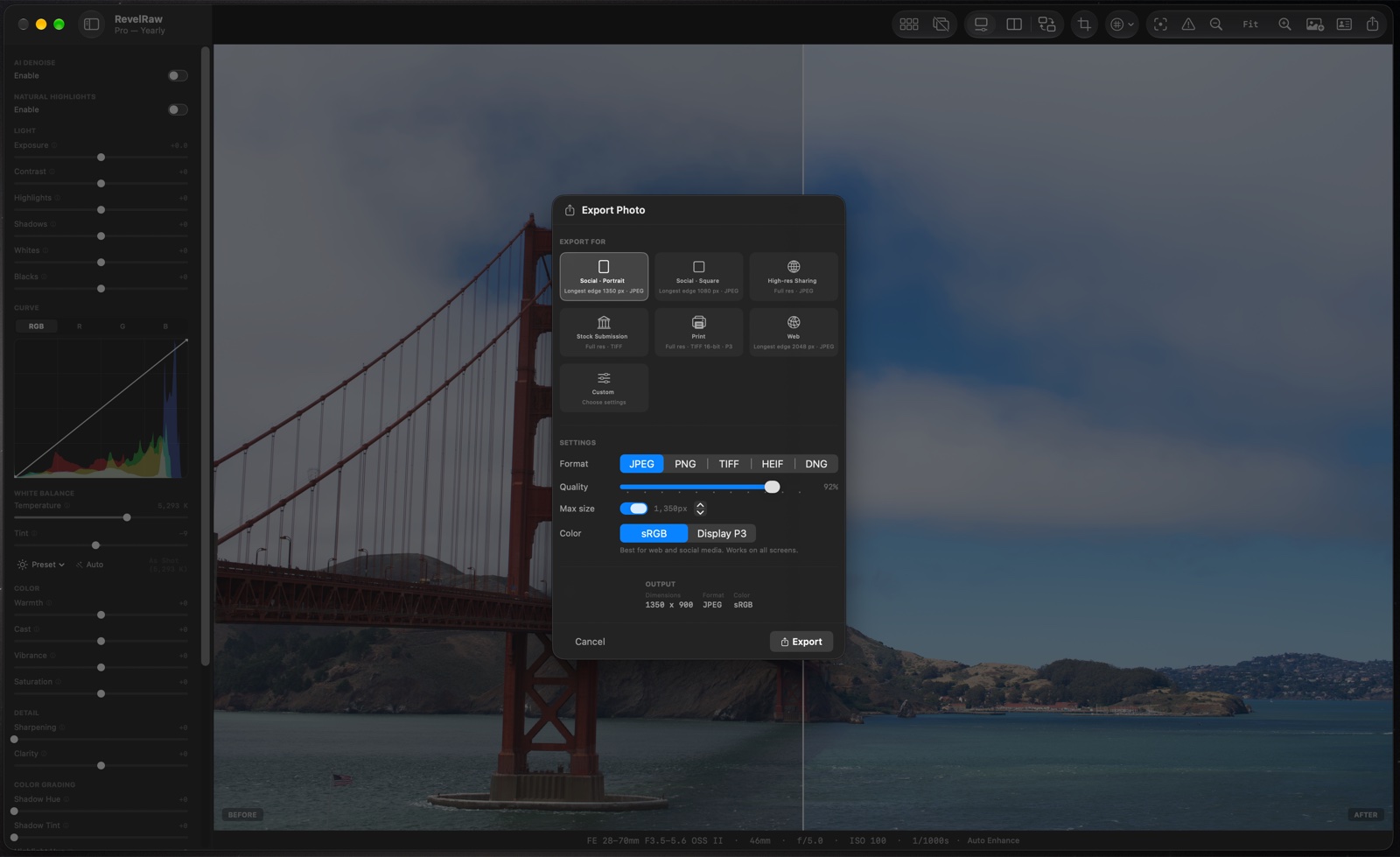
For Instagram, start with a JPEG in sRGB after choosing your crop. RevelRaw’s export size setting limits the longest edge and preserves the existing aspect ratio; it does not crop a photograph into a square or 4:5 frame.
Crop first, then set the longest edge
For 1080 × 1350, first crop the photo to portrait 4:5, then set the longest edge to 1350 pixels. For 1080 × 1080, first crop to 1:1, then set the longest edge to 1080 pixels. These dimensions assume the cropped original is at least that large: export does not enlarge a smaller image. An uncropped 3:2 photo keeps its 3:2 shape. Check the exported dimensions before uploading. These are two delivery examples, not all the formats Instagram accepts.
Choose JPEG quality by looking
Try quality around 90%, then inspect skin, smooth skies and fine detail in the exported file. Raise it if you see compression artifacts. No percentage guarantees an unchanged upload; Instagram can process the file again.
Check color and detail
Use sRGB for this delivery copy. Inspect sharpening at the exported size. If hair, branches or text have bright halos, reduce sharpening in the RAW edit and export again. Different screens can still display the same file differently.
Keep the original and check metadata
Retain the RAW or ProRAW and export a separate sharing copy. Check author, copyright and location fields. Social platforms may remove embedded metadata, so include visible credit where it matters.
Questions before you start
Can I try a whole set before buying Pro?
Yes. Opening, editing, comparing and syncing photos are free. One full-quality single-photo export is included; unlimited exports and batch export require Pro.
Will one preset make every photo match?
No. A preset provides a shared starting point. Differences in lighting, exposure and subject colors still need individual corrections.
Can I use iPhone ProRAW with camera RAW files?
Yes. RevelRaw supports ProRAW DNG and camera RAW formats including ARW, CR3, NEF and RAF. Check your camera model and RAW mode with your own files before buying.
Does RevelRaw publish my posts or edit video?
No. This is a Mac workflow for editing and exporting still photos. Transfer the finished files and publish them yourself in Instagram, TikTok or another app.